
 Home Assistant
 Voice Satellite
 ESPHome
 Music Assistant

 Immich
 Bluetooth
Hands-free voice control with a familiar look
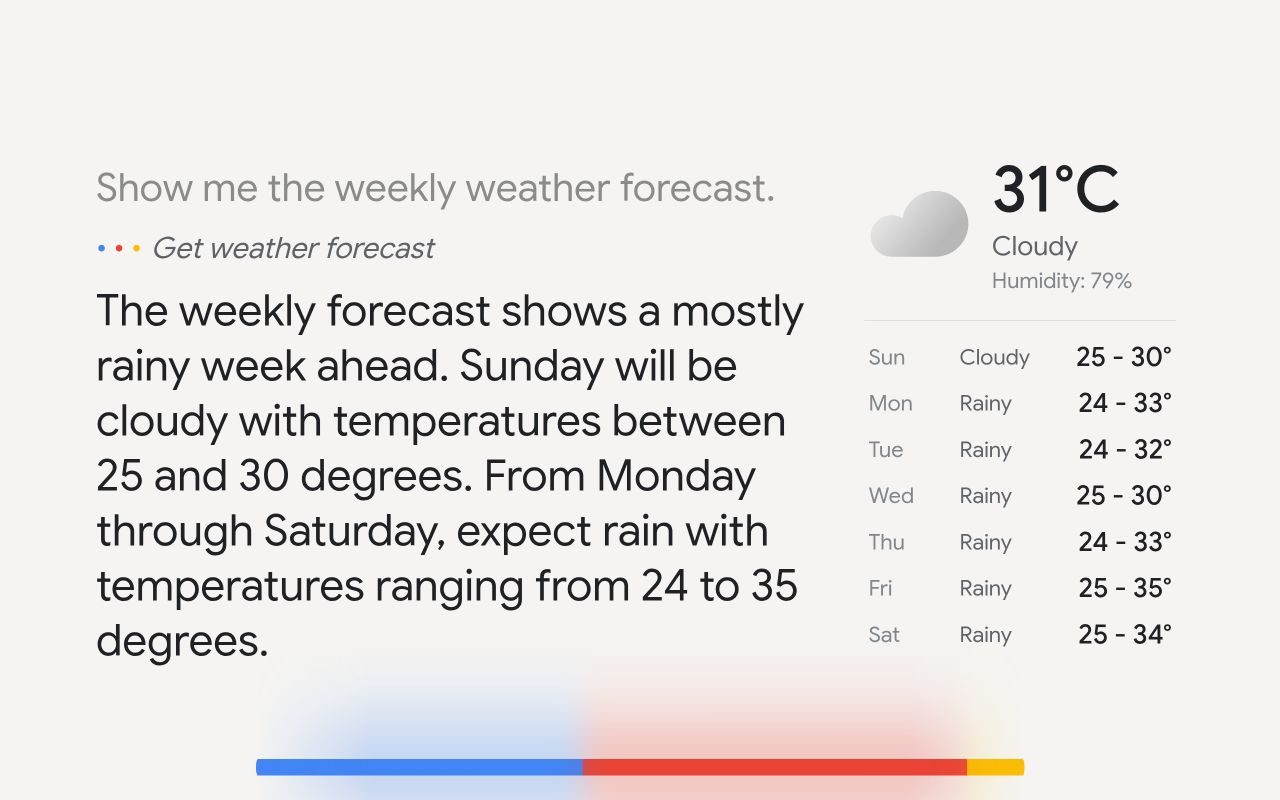
Voice Satellite is built in, so wake word detection runs directly on the device. It can keep listening with the screen off or while another app is open, and the microphone works with plain HTTP dashboards too, so there is no need to set up HTTPS just for voice.
- vsWakeWord, the premium engine and wake word models made for Voice Satellite
- Support for openWakeWord and microWakeWord custom models
- Use two wake words with two separate Assist pipelines
- Play text-to-speech and chimes on the kiosk or send them to a higher quality remote speaker
Keep the music in sync from room to room
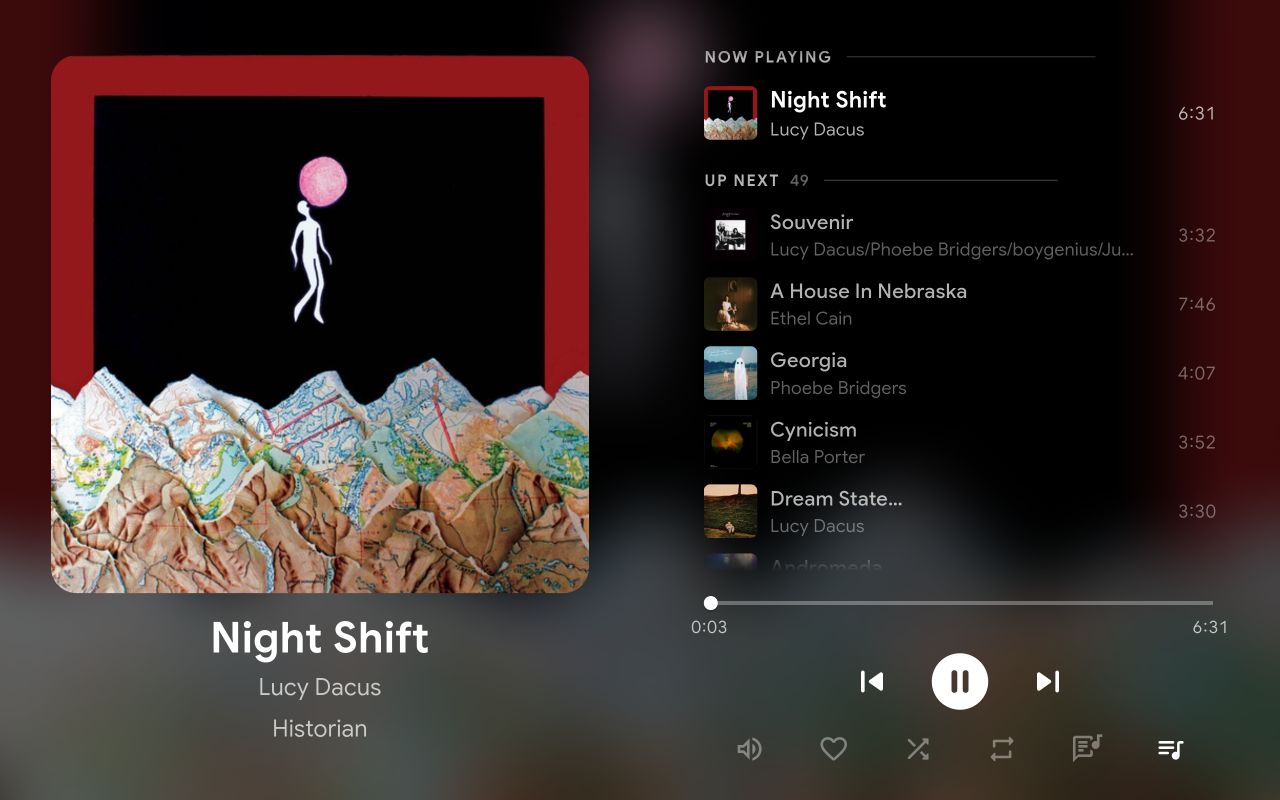
Play Music Assistant through Sendspin and keep multiple kiosks synchronized, or have the kiosk follow a Home Assistant or Sonos player instead. The full-screen Now Playing view gives you album art, playback controls, the queue and lyrics without leaving the display.
- Built-in Sendspin player with queue and grouping support
- Synchronized lyrics when they are available
- DLNA playback from controllers elsewhere on your network
Beautiful screensavers worth looking at
Show photos from Immich, Home Assistant or local storage, switch to a full-screen clock, or let Weather Mood turn the current weather into an animated sky. Add weather or At a Glance information on top. The kiosk can wake when it detects motion, a face or presence nearby, while schedules control what appears and when.
- Weather Mood skies follow all 15 Home Assistant weather conditions from dawn to night
- Filter Immich photos by people, tags and favorites
- Digital, flip and roller clocks, including a night mode
- Automatic brightness adjustment using the device light sensor


See up to twelve live cameras at once
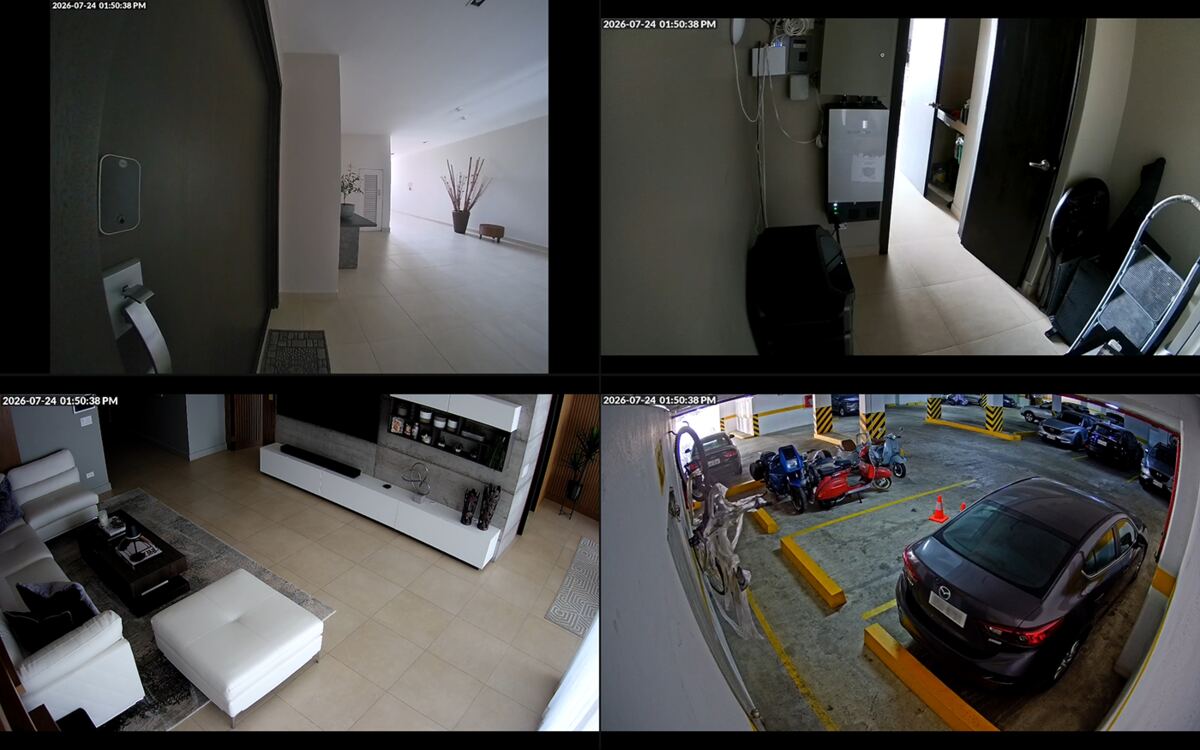
Bring in cameras from Home Assistant or Go2RTC and arrange them into custom camera views. You can open a view from a Home Assistant automation or simply hold up fingers to the device camera. The tablet's own camera can also be streamed back over RTSP.
- WebRTC with HLS fallback and support for H.264 and H.265
- Rotate through camera views as a screensaver
- Expose the device camera to Home Assistant as a camera entity
The kiosk becomes part of Home Assistant
Kiosk Satellite's built-in ESPHome server exposes controls and sensors as Home Assistant entities. There is no separate add-on or integration to install. You can automate the kiosk just like anything else in your home.
- Screen, brightness, volume and screensaver as entities you can automate
- Motion, light level, battery and presence as sensors
- Announcements spoken on the kiosk with text-to-speech from an automation

Call any kiosk in the house
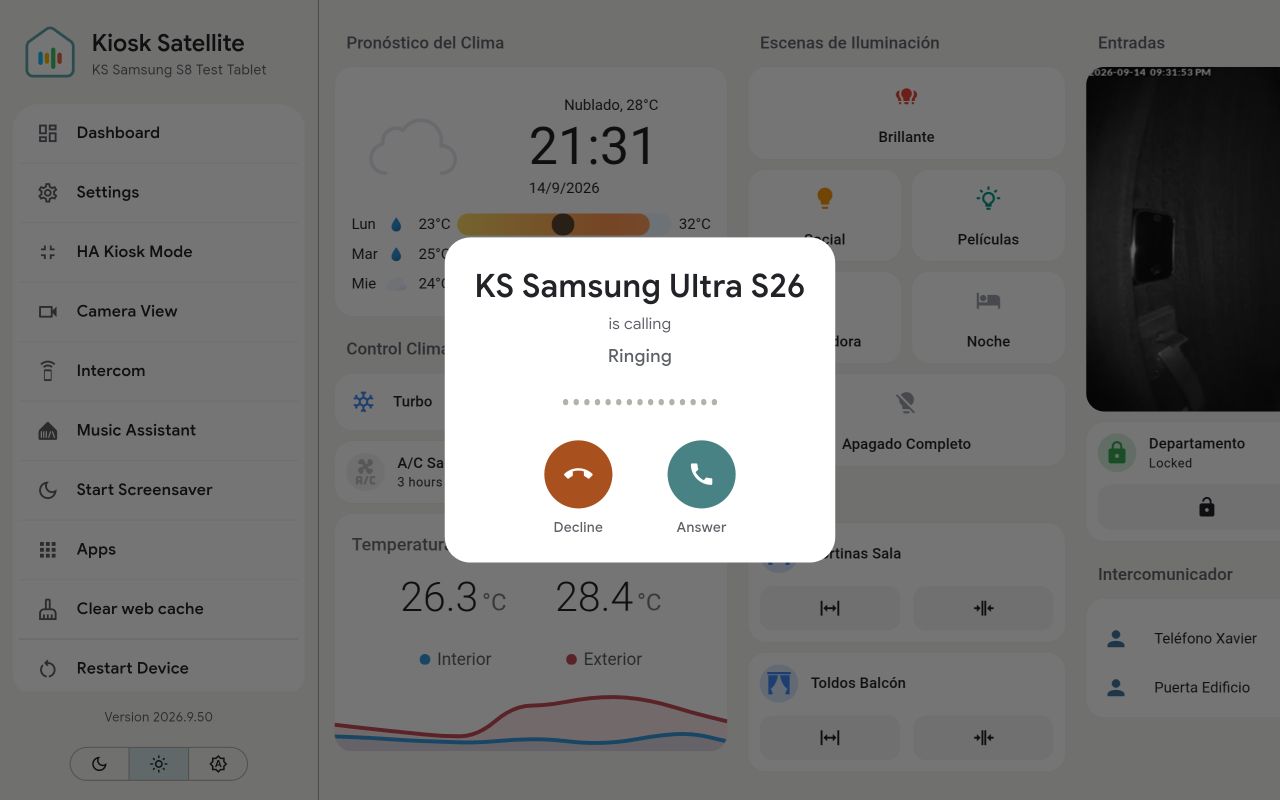
Kiosks on the same network can call each other or announce to every kiosk at once. Voice travels straight between kiosks, with no server in the path.
- Pick a kiosk from the kiosk menu or a gesture and it rings there
- Ring, answer automatically after a chime or do not disturb, per kiosk
- A call wakes a dark screen and draws over the screensaver
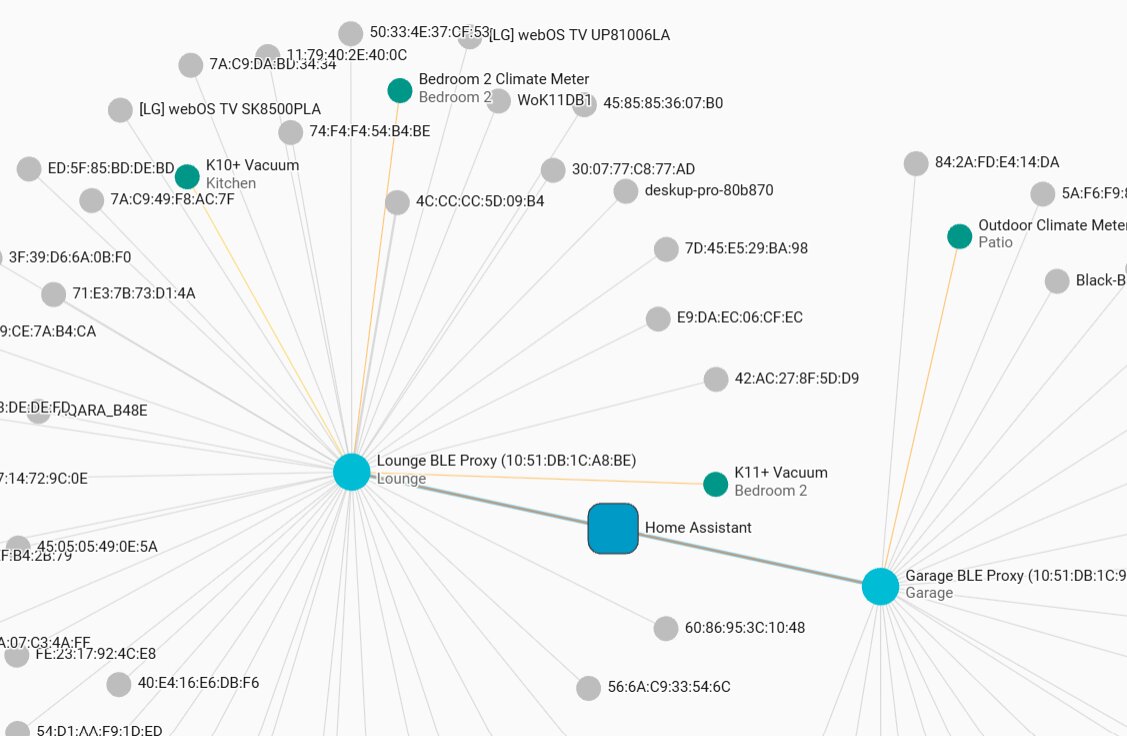
A Bluetooth proxy in every room
Each kiosk can relay nearby Bluetooth devices to Home Assistant, the same way an ESPHome Bluetooth proxy does. Sensors, beacons, locks and buttons reach Home Assistant through whichever kiosk hears them best.
- Active and passive scanning with three power levels
- Home Assistant connects to locks and buttons through the kiosk
- Weak signals are handed to a closer proxy automatically
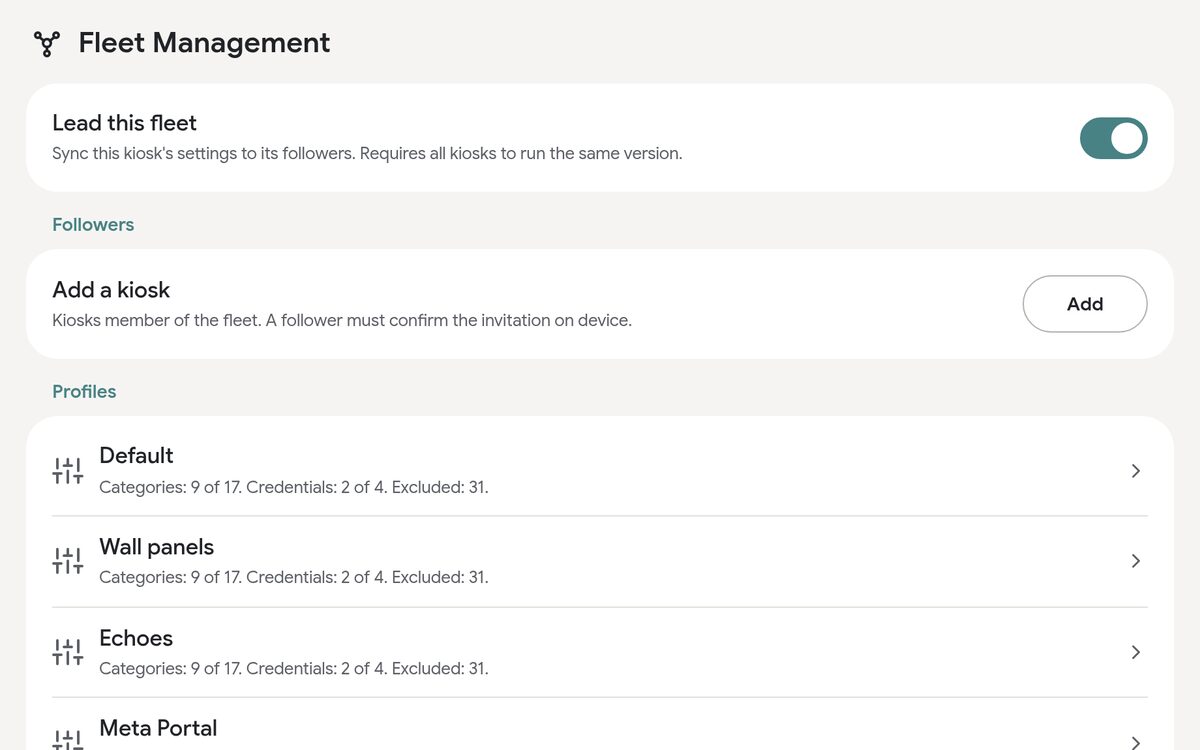
Set up one kiosk, then let it lead the rest
One kiosk leads and the others follow. The leader pushes configuration profiles to its followers and rolls updates out across the fleet, while each kiosk keeps its own name, Home Assistant connection and hardware preferences.
- Invite kiosks from the leader and accept on the device itself
- Profiles decide which settings each follower receives
- Updates roll out to the whole fleet at once
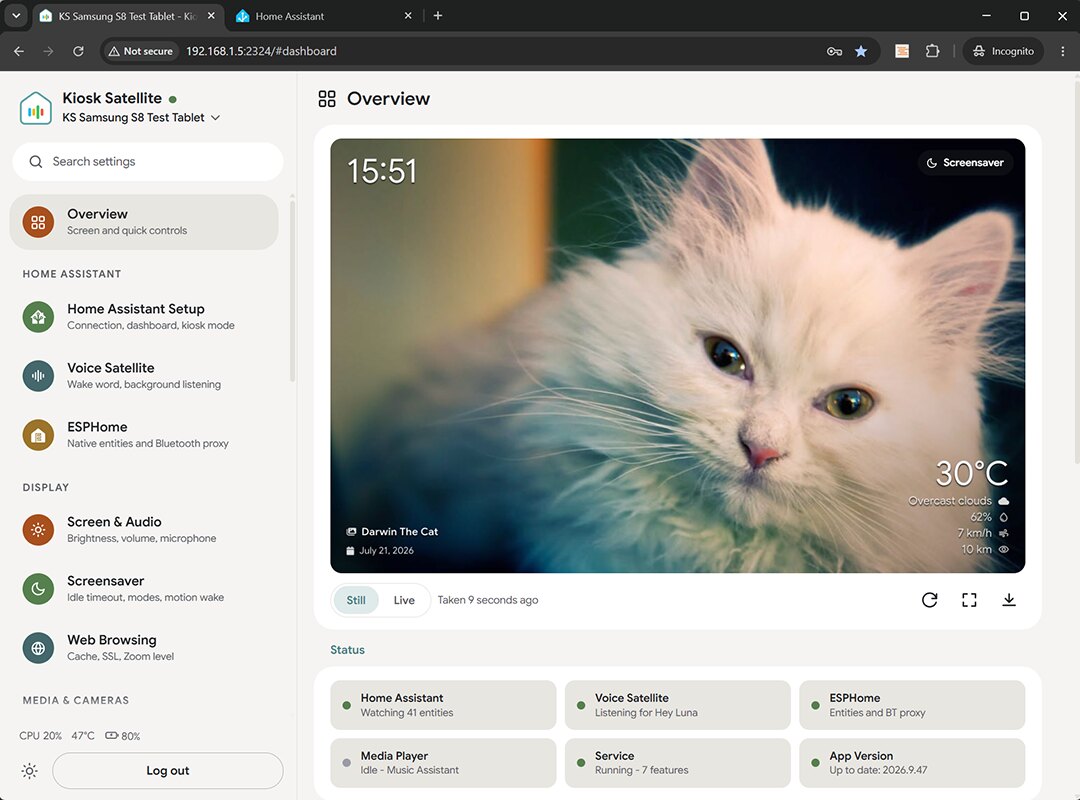
Manage your kiosks remotely from a web browser
Open a kiosk from your computer to change settings, view a live screenshot, check logs or back up its configuration. With Fleet management, multiple kiosks can synchronize configuration profiles and receive updates together.
Everything you expect from a Home Assistant kiosk and more
Built to run smoothly 24/7 even on low powered devices, with all the features needed for a smart home display.
Up and running in three steps
All you need is an Android device running 7.0 or later, a Home Assistant instance the device can reach and a long-lived access token from your Home Assistant profile.
Want voice control too? Voice Satellite is built in. Onboarding turns it on, and a migration wizard moves over a kiosk that ran the Voice Satellite integration.
-
1
Download the latest APKOpen the APK on your Android device and install it. If Android asks, allow installation from that source.
-
2
Run through the setup wizardConnect to Home Assistant using your long-lived token, then choose the dashboard you want the kiosk to display.
-
3
Finish the setup from your computerIf you enabled Remote Administration during setup, open the kiosk's address in a browser and configure the rest from there.
http://<device-ip>:2324
Thank you for supporting the project
Thank you to everyone supporting my work on Buy Me a Coffee! Your contributions go a long way in supporting the time, work and hardware it takes to build and maintain Kiosk Satellite.
- Xavier